Trades and AI – worth the watch or listen

Every now and then in my podcast travels, I find an episode that really registers with me and I start sending share links to people. It’s one of the great things about them, it’s easy to spread the word when it’s truly worth spreading.

In the last two weeks, there have been two, from different podcasters. I’ll share them here as well. Both are about an hour long.

First up – It’s only the Best School in America – from The Way I Heard It with Mike Rowe

Mike chats with Dr. Sheree Utash, Ed.D., president of WSU Tech and a national leader in workforce education. They talk about how she reinvented a community college into a national model for workforce development, her role in taking Mike’s S.W.E.A.T. Pledge and shaping it into the mikeroweWORKS curriculum, and why she believes skilled trades are key to America’s future. It’s a perfect pre-Labor Day discussion.

I’ve long been an advocate for those wanting to go into skilled trades. The country needs them, as many are now retiring out at a rate far greater than those going to those professions. My generation did a terrible disservice to kids, pounding the message that higher education was the path to success. We made it sound like it was the only path, and in the process pulled industrial arts out of schools. There are many paths to success, and they don’t all involve a degree. We’re all paying the price for that poor guidance today.

Here’s the Apple Podcasts Link, or watch it below on YouTube.

Next up – The AI Dilemma — with Tristan Harris from The Prof G Podcast

Tristan Harris, former Google design ethicist and co-founder of the Center for Humane Technology, joins Scott Galloway to explain why children have become the front line of the AI crisis.  They unpack the rise of AI companions, the collapse of teen mental health, the coming job shock, and how the U.S. and China are racing toward artificial general intelligence. Harris makes the case for age-gating, liability laws, and a global reset before intelligence becomes the most concentrated form of power in history.

I love listening to smart people talk about really challenging topics in a meaningful and constructive way. This was fascinating, educational, terrifying, and a few other words that I can’t articulate right now. If you have any interest in AI, you’ll find this very relevant.

 Here’s the Apple Podcasts link, and YouTube variety below

I hope you enjoy them as much as I did.

Protect Yourself: Read Receipts

Have you ever given any thought to the read receipts on your text messages?

If you don’t know what I’m talking about, it’s the text under your sent messages that tells you if the message has been delivered, and if read receipts are turned on, it will show the item has been seen by your recipient.

Handy, right? Particularly handy if I send a message to my grocery-shopping roommate to grab some bananas – and I can tell if she’s seen it. She doesn’t necessarily have to respond, I know she’s seen it.

Here’s the bad part: if you turn them on globally for all messages (which is the default), those receipts are also going to the people who are based in the Phillipines that are sending you messages about overdue road tolls you supposedly owe (we all get them). In other words, they know you’ve seen it. Same goes for all the other places that text you – it’s a confirmation their message is getting through to actual eyeballs. There’s quite a difference between delivered and read.

The good news is that you can set up your phone to handle both scenarios. Set the default to no, and selective people yes. This is what it looks like in iOS 18.

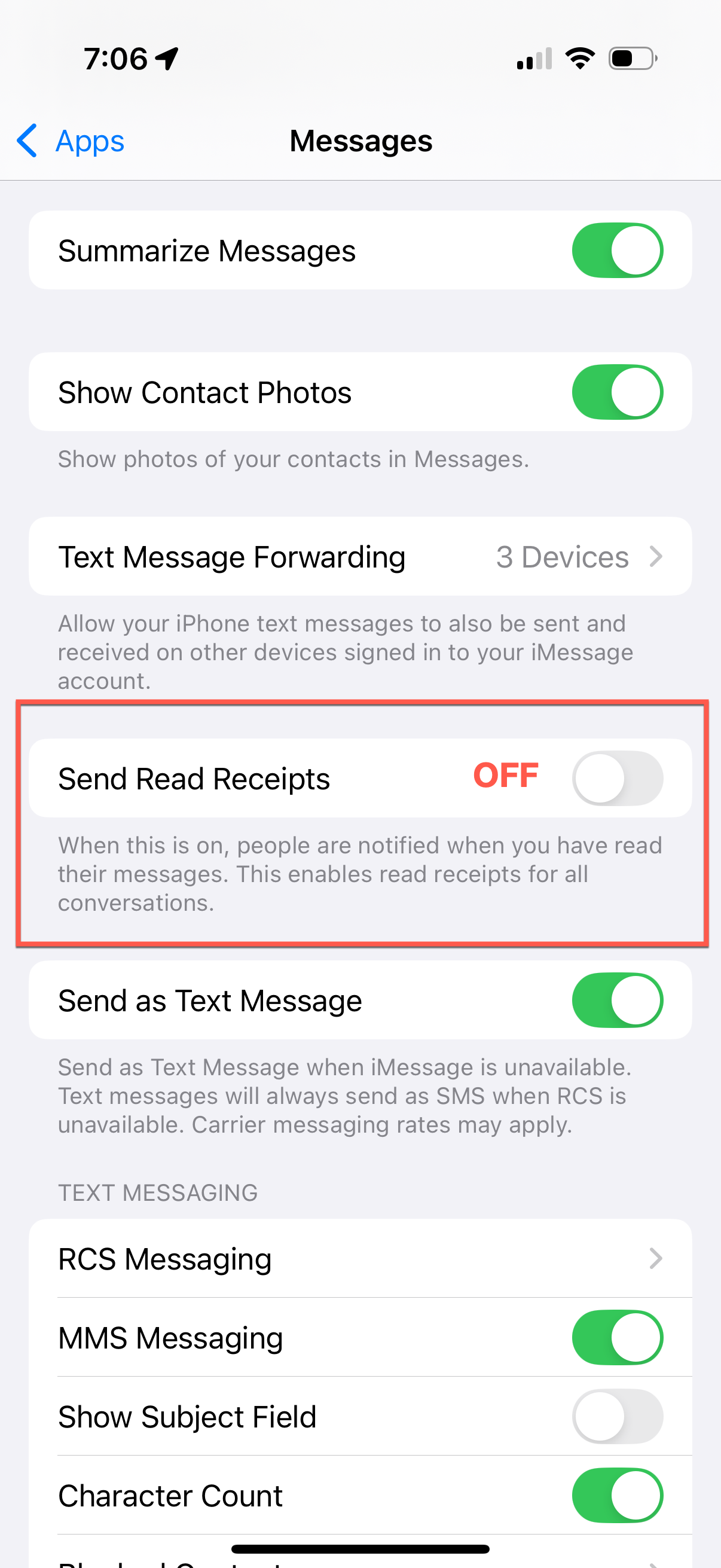
First, change the default settings – under Settings > Apps > Messages – make sure Send Read Receipts is set to OFF.

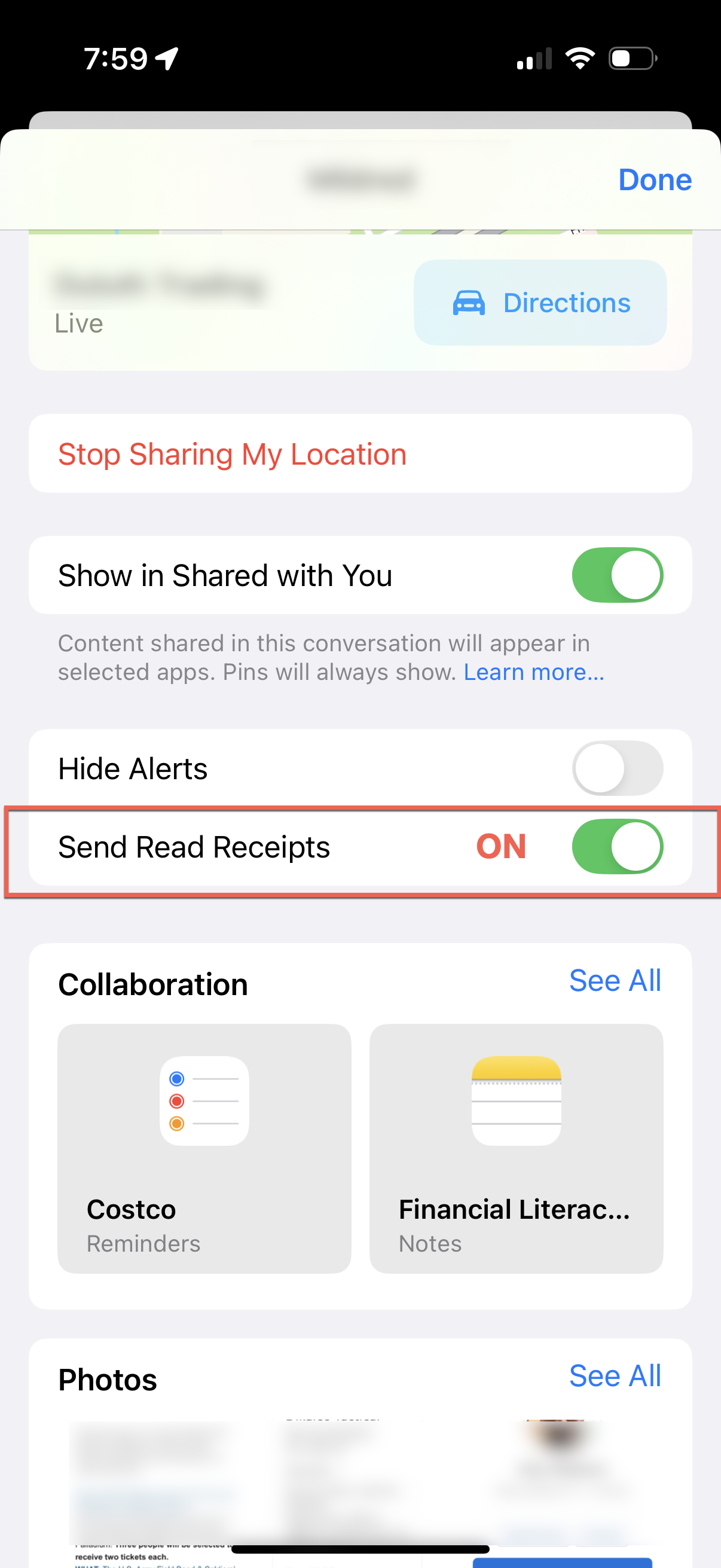
To enable sending read receipts to a single person, go to Messages, open the thread for the person you want to enable, and top on their avatar/image/contact photo. Scroll down, and you’ll see the option to Send Read Receipts for that one person.

Go forth, text, and (selectively) send receipts. Safely.

Cross-posted at Bridegroom Technologies

Protect Yourself (a series)

I was having a conversation about security basics with my wife; we touched on a lot of topics pretty quickly – phone settings, app settings, ways to protect accounts, and just general security hygiene. “You should write about some of these things”, she says – and I think she was right.

I’ve got 3-4 ideas drafted, for posting across the next few weeks. The plan is to deliver small bits, one topic at a time, making them shorter and quicker reads. I’ll be cross posting them between the Bridegroom Technologies and Beyond the Defaults sites, I think they work in both places.

To give you quick taste of things, I’ll offer some quick thoughts on news that broke today – the Chapter 11 Bankruptcy filing of 23andMe (the DNA testing company).

The quick thought: if you have information/data there about you, or have submitted things to them, start the deletion process. Now.

Chapter 11 is protection from creditors (versus a Chapter 7 liquidation) – but that doesn’t change the urgency here. One of the founders is trying to purchase the company and its assets (key point: all of the collected DNA results here are one of main assets of the company). However, she’s already been rebuffed once, and there’s no guarantee those assets won’t be sold to someone else to recover value for its investors and creditors as a part of the reorganization plan.

Since these are the days of doomsday thinking – can you imagine what a treasure trove of DNA data would be worth to someone like, say, some of the big tech names we read in the news almost every day? It’s all about data, especially when we consider things like training AI models. Scenarios like that make me and a lot of other people concerned about privacy and ethics lose sleep.

So 23andMe customers – protect yourself, act now, start deleting. While you’re at it, look at the privacy policies of other companies that have your personal data. Some jurisdictions (like California) have stiff privacy laws, but whether or not that covers companies that endure financial distress is up for debate. Yes, they’re boring to read, but this is why you should.

I hope you find these helpful and interesting. If you do, be sure to check back or subscribe to the site for future posts.

Podcasts might be your friend

I ingest a lot of information, but it’s not always something that I read. There’s simply not enough “sit down” time to read all the things I want to read (unfortunate, but true). The good news is those portable technology things we tote around these days have this wonderful app called Podcasts.

I’ve always been a fan of radio, hooked at a young age on things like the Dr. Demento Show. The problem with catching the show was finding a radio station within reach that carried the show (very scarce in central Indiana), and hoping it was broadcast in a two-hour window that allowed me to listen.

Growing up in Chicago radio-space, it was Sunday 10:00 PM to midnight on WLUP for as long as could remember. Yes, Monday’s sucked more than normal, but always worth it.

I tell that story because having someting like a podcast would have been the ultimate answer. Think of a favorite a favorite radio show on a topic that’s interesting to you, except you can download it and listen to it when it’s convenient to do so. That could be cleaning the house, cutting the grass, driving to and from work, on a flight, digging in the garden, or any place where listening is possible but watching/reading may not be.

Streaming has changed the way people watch shows – they originate from a lot of different services, and we wait for the “drop” day and plan viewing schedules accordingly. Sometimes there’s a binge watching event, to catch up. Podcasts have done all this, and have been doing it for a long time. Once the the first portable audio players reached a critical mass in the early 2000’s, they started to appear. They didn’t need mobile bandwidth to play them, and the files were small enough that they could take advantage of much lower network speeds than we enjoy today.

Where to find them

The question of where to find them is probably best answered by pointing you to where you listen to your music and other audio content. First, though, you need an app on your device to consume/subscribe to them. Take your pick from any of these:

  • Apple Podcasts
  • Google Podcasts
  • Pocket Casts (3rd party app)
  • Downcast (3rd party app)
  • Overcast (3rd party app)
  • Spotify (exclusive content available)
  • Audible (exclusive content available)
  • iHeart Music

I’m sure I’ve missed a few, but any of these will get you on your way to listening.

The content options

There are podcasts for everything. Popular genres today include “true crime”/unsolved crimes/unsolved mysteries – and the conspiracies that grow from them. Of course there are political shows, news & opinion (some even local), sports, technology shows for the nerds, comedy, interview shows, and a ton of personal development options.

You know what you call a former network anchor/talk show host? A podcaster. People like Chris Wallace, Don Lemon, Katie Couric, Oprah Winfrey – all with very successful podcast operations. A lot of current broadcasters maintain podcasts – a platform to go deeper on topics, or be able to say things that might not fly in their day jobs.

If you’ve ever questioned their popularity and growth, we need only look at the election season last November. The ratings comparison of candidate news interviews versus podcast appearances is not even close. This image from Scott Galloway’s No Mercy/No Malice newsletter quickly paints the picture:

My point here is not to debate politics, but rather to illustrate what podcasting is doing to the media landscape. It is eating it alive, and it’s not going to stop soon. It doesn’t take a lot of money to produce a basic one – less than $1,000 in equipment, a computer, and an internet connection. The large, successful ones have full-blown studios, but most of them are in a host’s home delivered over the internet. Good cameras and microphones are not outrageously priced (I spent less than $300 for a good combination), and fiber optic connections to the house are getting to be normal.

A lot of podcast networks (like Spotify, Audible and iHeart) have paid some crazy contract money to hosts – a few have been successful, but there have been more flamouts than successes. Most are either advertiser or subscriber supported – because network and storage still costs money. All of this means that opportunities for smaller podcasters with great content (because it’s all about the content) are getting tougher, but it’s still there.

I’ve toyed with the idea off and on; I may still try it as a free offering, this site’s hosting service supports a way to store and deliver it. I’m still thinking about it.

What podcasts do for me

Other than saving me time and filling otherwise “dead hours” with meaningful content, I think I can break dow what I gain from listening to different shows into three categories:

  • Inform and educate – I like to hear from experts, or listen to an in-depth interview with someone of note or interesting in some way. In some cases, it’s to listen to viewpoints other than the ones I might have. It just makes me a more rounded person
  • Consolidation of information – news and interview shows can sometimes boil down the content from dozens of posts/pages/sites into an hour or so.
  • Entertainment – some people are just plain funny and enjoyable to listen to. It makes the drive home more enjoyable, allowing me to wind down and transition from my work brain to my home brain.

My listens and recommendations

News and Opinion

  • Pivot – Kara Swisher and Scott Galloway
  • Prof G Pod – Scott Galloway
  • Hacks on Tap – political hackery from Mike Murphy and David Axelrod
  • IBJ Podcast – local news & interviews from the Indianapolis Business Journal

Technology Related

General Interview and Entertainment

Personal Development

I don’t listen to every episode of every show – there are some I bail out after only a few minutes, and some show descriptions are just not appealing. Others I might listen to more than once. I might take a break from one or two for a while. I like the flexibility of choosing my listen.

As for a Dr. Demento podcast? I asked them about it, and licensing of the music would be unmanageable for them. Unfortunate for me, but understandable. I can subscribe to the site and listen online, but it means making sure I’ve got a network of some kind to listen to the stream. But I can dream…


If you enjoy reading this site, we can send new content to you when it’s published. Just provide your email below (with a 100% promise to do nothing else with it) and the website fairies will ship it directly to your inbox.

Inbox Spring Cleaning

I happened to walk up on my charming & delightful roommate while she was mindlessly poking at her computer; I could see she was in her email, releasing a periodic heavy sigh.

“What are you doing?”

“Cleaning my inbox – there’s so much garbage in it that I can’t find anything.”

I looked – she’s right. It’s a mess.

How does it get that way?

“Sign up to become a member of our community”.

“Request a free catalog”.

“Get notified of the latest sales and online coupons”.

“Like us on Facebook”.

Any one of these may plop your mail address in many a mailing list, including lists for which you never signed up.

You might be wondering if it’s too late to stem the tide (or tidal wave). Admitting the problem is the first step – here are a few suggestions get yourself on a better path.

Declare Email Inbox Bankruptcy

Step 1: Select All in the Inbox (Ctrl-A)

Step 2: Delete All. 

Step 3: Confirm deletion.

It’s a harsh step, but sometimes that’s the only way to do it. Here’s a secret: I’ve done it. The theory is that if it’s really important and requires action, senders will often resend it to you (at least in the work world, anyway). It’s surprisingly effective (if you’re comfortable doing it). Once you do it, though, you need to take measures to help keep it clean. So keep reading.

Unsubscribe

Sometimes this is helpful, but it really depends on the credibility of the source. Reputable companies and list managers will truly unsubscribe you, others simply just move you to different lists because you’ve now verified that your address is valid so it’s gets “repurposed” (looking at you, Klaviyo, you bastards). In those cases, it’s like playing Whack-A-Mole.

Use your Junk Mail folder

Most mail systems now have some intelligence behind them, along with a junk mail or spam folder. If you move a message to junk, it teaches the mailbox what junk is for you, and it will start automatically moving things there. Sometimes it misfires, so check it every now and then to make sure there are no false positives. Mark them as “not junk” to keep future messages from a sender out of the junk mail folder.

Use a mailbox rule or two (but not 12)

This is actually the method I use. It’s considered heresy around Pug Hollow to receive a coupon and just completely disregard a savings opportunity while at an establishment I frequent. The answer to that dilemma is to add a rule (Gmail calls them filters) to the mailbox that identifies the frequent-fliers and simply move them to a different folder in my mailbox (for me, that folder is fittingly called Sales Crap). If I’m out and think I have a coupon I can use, I can look in there. Every few weeks or so, I empty the folder with two clicks (instead of wading through my inbox). Incredible time, noise, and stress saver.

Pro Tip 1: Some rules engines (like the one in Outlook) allow you to run your rule on demand on already received items. It’s like taking a firehose to clean your inbox (and helps avoid the bankruptcy path).

If we’re talking about your work inbox, coupons and sales messages may not be the problem; the dreaded CC: on messages might be burying you instead. For that, I’ll refer you to this item from Scott Hanselman about the one email rule that everyone should have. The short version is move those CC: items out of your inbox and into a different folder. CC: can (and should) be translated to FYI. Things that require immediate action should have me in the TO: line. For people that get a crazy amount of mail, this can be life changing.

Be careful not to get nutty and start creating sets of exotic rules or filters that help manage some crazy folder/filing system in your mailbox. You will end up spending more time managing the system than you should. 

Pro Tip 2: Other than my Sales Crap folder, I don’t use folders and there are absolutely no folders nested in other folders. Search is powerful – if I need to find something, it’s proven to be very effective without the headache of maintaining a filing system. If you combine it with using things like Categories or tags, searching on tags is a lot easier than a folder structure.

These tips should help you even the fight with the onslaught of incoming mail.

How you reply matters

If you answer a lot of questions (like I do), it’s really easy to get buried in responses to those questions. They take a lot of time to answer. The bad part about that is (at least in my case) answering the repeat questions – because it’s really rare when I get a true “one-off” request. 

So we have to ask ourselves this question: do they deserve the gift of my/your keystrokes in the form of an answer? It depends on how you bundle and distribute those keystrokes. Going back to Scott Hanselman, take a peek at three and a half minutes of this keynote he delivered. I’ve adopted this approach and can attest to its value. I recommend the whole keynote, but this will jump you to the 18:05 mark.

Spoiler alert: don’t answer in email, unless that email has a URL to the answer.

For my work, I really don’t like using email for collaborating; it’s harder to do, and there are much better tools for group work. I speak to people about better collaboration a lot, because it really does make a difference if you’re willing to change the way you work a little bit. If you’re interested in more on these ideas, drop a note or leave a comment and I’ll share some thoughts.

Digital Estate Planning

My charming & delightful roommate and I spent a good bit of time this past summer doing adult stuff. No, not that – the boring adult stuff that’s really easy to kick down the road for another day: estate planning.

We’d done some of the necessary work, but there were a lot of details we were overdue in addressing. It also got me to thinking about what kind of planning is needed for modern digital times. I tried to consider as many angles as possible, and started to write them down. As long as they’re written down, I thought I’d share them here in case it helps someone else.

The goal is simple: make it easy for whoever is tasked with sorting out your affairs. Leave them a playbook, be clear about your intentions. Here are the things someone will need to have or know about.

Your Phone

Make sure someone can get into your phone – which means writing down the device pin in a safe but accessible place. Too many pin attempts to unlock devices tend to result in turning them into bricks. This is probably the easiest thing in this list to do – and might be the most critical to making the rest of this work:

  • Your phone probably has apps to access financial systems.
  • You might have authenticator apps (like Microsoft Authenticator, Google Authenticator, or another of the many available apps) that you will need to verify identity using a code.
  • Some systems will text a verification code to the phone – someone may need that to access important info.

Your Computer

Do the same things you would with your phone. These days, a lot of people have their own device (even the kids). Make sure the machine that has access to your playbook, along with other important information, is accessible and can be unlocked.

Electronic Billing and Banking

Most of us by now are conducting some part of our affairs online. That could be utilities, banking, online subscriptions, or anything else involving a username and password. If you’re really doing the right things, you’ve got some multifactor authentication schemes set up. Here’s what you’re going to need to document:

  • It might be challenging, but try to inventory the sites on which you do business. Collect the site URL, and the username/password used on the site. Here’s a starter list:
    • Your email
    • Banks and Investments
    • Credit card companies (including the department store cards if you still have them)
    • Health records (things like MyChart or CVS), for health history or medications
    • Utilities
    • Pensions, Insurance
    • Social Security Administration
    • Streaming services and other subscriptions
    • Amazon
  • Consider using a password manager – something that can act as a vault for your information. Using solutions like 1Password, LastPass and others, you can store (and in a lot of cases, share) your login information in a location that can sync across your devices. They also have built-in tools to support emergency access, should the need arise.
  • I would suggest collecting Account Numbers as well. You may not need them for gaining electronic access, but having account numbers handy and in one place will eliminate confusion.
  • Don’t forget the mobile apps  – most of them have credentials as well (and it’s likely that face recognition won’t be an option).

How and where to store it

It’s perfectly fine to collect and store everything in an electronic format, as long as you’re able to do two things with it: print it (so you can include it with your other important documents), and be able to open it up later (choosing a file format that you expect to be supported down the road is important). Some options:

  • A text file – a universal format that can be opened in a variety of editors.
  • A Word document – it’s a popular format, and the tools are familiar to many.
  • A spreadsheet – Excel, Apple Numbers, or something like it will work well for organizing columns of information.
  • A PDF – while you may not be able to edit it, most everything will open a PDF for viewing.

You’ll certainly want to keep a paper copy of everything with your other estate planning materials. In addition, I’d suggest having a PDF version of all documents someplace you can access quickly. Sometimes circumstances are urgent (I know this from experience), and knowing right where to look helps.

Keeping some electronic version (PDF or the native files themselves) in a secure online location will also help on the accessibility front (while also providing a means to back things up). This can be iCloud storage, OneDrive, or some other online storage solution that can be appropriately secured.

Another option is to use your password manager – services like 1Password and LastPass support secure notes that can receive and store attachments in a highly encrypted manner.

The Major Online Services

Let’s face it, a lot of our lives are in those mobile computers that we carry around. Not just the phone numbers, it’s also got our notes, reminders, files, photos and videos. The good news is that a lot of those things are synced to cloud locations for recovery later (should something happen to the phone). That is, as long as you’ve prepared for it.

Apple, Google, Facebook, and other big services have features that allow you to designate a “legacy contact” for your information. Some of these things are a little difficult to find, so I’ll offer some links here.

  • For Apple, everything is attached to your iCloud Account. You can set up a Legacy Contact by going to Settings > Apple ID > Legacy Contact (here’s a link to documentation).  
  • For Google, it’s your Google ID. Set up your Legacy Plan from your profile and going to Data & privacy > Make a plan for your digital legacy (or go to this link once you are logged in with your Google ID).
  • For Facebook, define a Legacy Contact that can manage your memorialized account (yes, they actually planned for and support such things). Your contact can write and pin a post, see your past posts, download your content, and a few other operations that are appropriate. Check out these two URLs from the Facebook Help Center for more information.

Pro Tip for Facebook/Instagram – take a few minutes to write what you would like your last post to say, and make sure your legacy contact knows where to find it. Nothing like signing off on your own terms with your own words – you can bet I’m going to make you laugh.

The Secret Sauce

The key to making all of this work is making the time and effort to get it done – and keeping it updated. Be sure to have a discussion with or hand over an envelope to those that will need to know where you “buried the treasure” so to speak. If someone is looking for this information in a time of crisis or grief, you’re not going to be of much help.

Make it easy for them, give them a playbook to run. It makes all the difference in the world.

Are You Backing Up?

Some time ago, a friend of mine tossed a question at me regarding backing things up on the family’s home machines (both Windows and Macs). Around the same time, my dad asked me about backing up his machine, telling me he’s never done it and wanted to know what might be the best approach to changing that.

Keep Calm and Backup Your Files Image

This got me thinking about other folks and what they’re doing – or more appropriately what they are not doing. So here’s the question to you – are you backing up your PC’s?

If you are – good. Read on if you want, but you’re already way ahead of the game. If you’re not – you need to read further. This is bad. Imagine losing all of your digital photos, MP3 music, MP4 video files, your Quicken files, online tax returns, or anything else that might be of value on that machine. When hard drives (spinning or solid state) decide to crap out, they don’t warn you – they just crash. Same thing goes for your phone (just ask my wife). The best way to ensure your data will be around post-disaster is to make sure it’s backed up.

Oh, and disaster is not always a disk crash (although it’s the most common).  It could mean flood, fire, leaky pipe, drop, power surge, spilled coffee and various acts of nature.  So what that means is you’ve got some things to think about.

Here’s what I suggested to my friend:

  • Your devices (computers and phones) come with a backup solution of some sort, and they all work.  It may not be a feature rich or point-and-click as other solutions you can buy, but it will get the job done. Do this at a minimum.
  • Local storage drives are getting pretty large – and so are external storage options. You’ll most likely need to consider backing up to some sort of external drive or network drive.
  • If you have several machines, centralizing backup might also be a good choice, usually via a network. Depending on the ecosystem you’ve hitched your wagon to (Windows, Apple, or Google), there are cloud solutions you can leverage.
  • Cloud is getting cheaper all the time, and frankly easier. Consider blending in some online or “cloud” backup solutions as a part of your strategy if you’re using attached storage.
  • Worst case, burn stuff to DVD’s (they’ll hold about 4 GB). It’s awful, painful, and far from efficient, but it’s better than nothing.

There are lots of options as you look at gear, in terms of it being fault-tolerant, removable and portable. Having a mix (more on that later) provides some safety nets.

For backup of a single machine – go find a portable hard drive.  Something at least USB 3.0 if you can, because it’s much faster than older tech. We’re now in a world where USB 3 is the slow stuff, which is awesome. Unless you have a big desktop machine with tons of storage, there are many solutions. Finding external drives 1 TB or larger is extremely easy these days; USB 3 thumb drives can be found as large at 512GB – something that seems absurd, but yet here we are.

Once you’ve got something to store the backup, check out your software/tool options:

Windows: Use Windows Backup (look in Programs > Accessories > System Tools), and follow the prompts to back up the machine to the external drive.  In many cases, these external drives come with backup software of their own – if you want to use it, great.  Just use something.

MacOS: Apple provides something called Time Machine, and can be pointed at either an attached drive or a network location. Look in System Preferences and follow the prompts. If you don’t want to go that route, look for a tool call SuperDuper (it’s an awesome backup solution for MacOS).

Phones are a little different – you’ll probably want to leverage the cloud services. Apple uses iCloud to store backups, Android uses Google Drive. Both platforms provide backup options in operating system:

  • Android – Settings > System > Backup
  • iOS – Settings > Apple ID > {device} > iCloud Backup

Make sure you set these up – go check now. I’ll wait.

If you’ve got more than one machine and want to consolidate backup storage, consider using network attached storage (or NAS).  Think of it as a computer, but no screen, keyboard or mouse – just hard drives and a network card.  They’re easy to set up, and put a boatload of storage capacity a network connection away. They’re a little more expensive, but have a lot of space and are generally more fault tolerant (meaning they will continue to run, even when they are “sick”).

I prefer centralized backups, but here’s the one thing most people don’t think about (and perhaps most people are not quite as paranoid as I am) – backing up to an offsite location. If your backups are in your house – and then something happens to your house – both your computer AND your backup files are in jeopardy. I know a lot of people that have computers in their basements – sitting on or near the floor. That’s one failed sump pump away from a useless setup.

This is where you have to decide how much “backing up” is enough to meet your needs, or my case, satisfy my paranoia.  Offsite storage can be as simple as disconnecting that portable hard drive and locking it up your desk drawer at the office. If that becomes your strategy, then get two drives and rotate them – that way there’s always one offsite.

Fast forward to modern day – when a lot of people no longer have an office they routinely visit. This is where cloud services (and fast internet connections) add a layer of recovery that’s accessible from anywhere.

With today’s higher speed internet connections, an increasingly popular (and easier) option is to backup or sync to a remote location. Mobile devices use iCloud or Google Drive to keep files available – those are available to use on PC/Mac/Chromium as well. If you’re not as concerned about recovering the machine and its configuration, just keep your important files in a folder that syncs between your machine and the cloud location.

The “big three” offerings include (and all have sync clients that can be installed):

  • Apple: iCloud Drive
  • Google: Google Drive
  • Microsoft: OneDrive (delivered as a part of Office/Microsoft 365 subscription)

There are also plenty of third party tools that do this kind of sync:

If you’re looking for strictly a backup solution (and not necessarily sync):

The backup services work in the background (a lot like the sync tools) to ensure your machine is updating backups as files change. It’s one of the reasons I’m a big fan of using them – things are kept up to date for me without my working very hard to make sure I’ve got copies somewhere else.

Is there a downside to a cloud service? In the event of a complete system recovery, it may take a while for everything to come back down from the remote site due to limitations in internet connection speed. Speeds today, for the most part, make this less and less of an issue.

Another option is a hybrid approach:

  • Do regular backups either to an external drive or NAS device (for system recovery).
  • Think about tiering or classifying what you might need right away, versus what you can live without for a few days – and the stuff you absolutely positively cannot lose.  That will help you determine just how, where and how often you do your backing up. Sync clients help a ton here.

One question that came up was using a safe deposit box (yes, they still exist and people do use them) for storing physical backups – personally, I wouldn’t recommend it.  For starters, the laws of computer crashes indicate that when you need access to your backups the bank will not be open.  Second, bank vaults are not climate controlled – and some media might not withstand the temperatures inside that vault on long July 4th weekend.

So what do I do today (and it’s evolved over the years)? I’m still a big believer in practicing the old “3-2-1” backup strategy, because it’s easy to remember: 

  • 3 copies of every file (one of which is your working copy) 
  • 2 different kinds of media (portable hard drive, DVD, flash drive, cloud storage)
  • 1 copy is stored offsite. 

So with that in mind:

  • I use a sync client to keep my data files in sync between my laptop and a cloud service. Everything I might need to get to is available to me via my machine, a browser, or my phone. It’s magical.
  • Periodic backups of my desktop and laptop machines to portable hard drives on my desk.
  • Periodic additional sync/copy of my music and 35mm digital photography from my desktop/laptop to a NAS location (for redundancy).
  • Since the music and 35mm photography don’t change constantly, I create a separate backup of those files on its own disk which is located offsite.
  • For certain critical files, I upload them to a secure folder in a different cloud service than my sync client.

In short – if something happens to my gear, I have at least four shots at an image or music file. In the case of other files, a minimum of three chances.  Yes, I’m paranoid.  I’ve lived through a drive failure – and if it weren’t for the backups, I’d have been completely hosed.

Back up your stuff – I can’t tell you how many people I’ve had to say “sorry, I think your files are toast” to after diagnosing problems. And I think you know the answer I get when I ask the follow-up question “do you have it backed up anywhere?”.

What to Do Before You Die: A Tech Checklist

Joanna Stern from the Wall Street Journal has been doing some interesting work lately, writing and interviewing about things we all need to talk about but never do.

What do we do with our digital lives when when our earthly lives are over?

There are some steps you can take now (like creating a digital will of accounts, designating additional “keepers” of accounts, taking inventory of what we have in the way of photos & video, etc).

I’ve got some work to do on this front – I’m in better shape than I thought, but still work to do. My guess is you have work to do as well.

Take a few minutes and check out her work if you can (it might be behind a paywall – it is worth a free article if you have one).

https://www.wsj.com/articles/what-to-do-before-you-die-a-tech-checklist-facebook-google-amazon-twitter-11608310486

What is Beyond The Defaults?

According to Dictionary.com:

The original settings. The standard setup. The way things were configured when it came out of the box. Vanilla. No changes. In technology, these are called the defaults. For most people, the defaults are enough.

Many moons ago, my friend Abby and I set out to make our non-work lives easier by starting up this little site called Beyond The Defaults. There are a million resources available to research just about anything – and that’s a pretty overwhelming endeavor when all you want to do is understand why a laptop might be a better option versus a tablet computer. For technical people (like us), we know how to wade through swamp, finding the nuggets that are useful. That’s why all of our friends and family start their phone calls with “hey, I’ve got a computer question for you”.

There are a lot more people like our friends and family than there are technical people like us, and those friends and family types simply don’t know what they don’t know. Even though things have advanced in big ways and people are a lot more technically savvy than they were nine years ago when we started, there’s still plenty to talk about.

I know that I’m doing a lot of things now that I wasn’t doing nine years ago, so I’m sure I’m not alone. Let’s reboot this thing and see what happens.

The objective hasn’t changed since 2011 – to show you the simple stuff that can make technology your friend, save you time and get the most out of all that money invested in technology. Some posts might very short – maybe just a quick note with a link to something useful. I’m hoping to also do a few longer things along the way as well. I hope you find some of it useful.